
Wondering if upgrading to Windows 11 24H2 is worth the potential headache? Yeah, we’ve all been there. But here’s the thing—this latest Windows update isn’t just another random pop-up you’d rather dismiss. It’s actually packed with solid improvements that can make a real difference in your day-to-day experience. Whether you use your PC for work, gaming, or everyday browsing, this update has something useful for everyone.
If you’re ready to make the jump, this guide will show you how to install Windows 11 24H2 update on your PC, step-by-step. Whether you want to wait for the automatic rollout or dive in manually, we’ve got you covered.
Top Windows 11 24H2 Features You Should Know
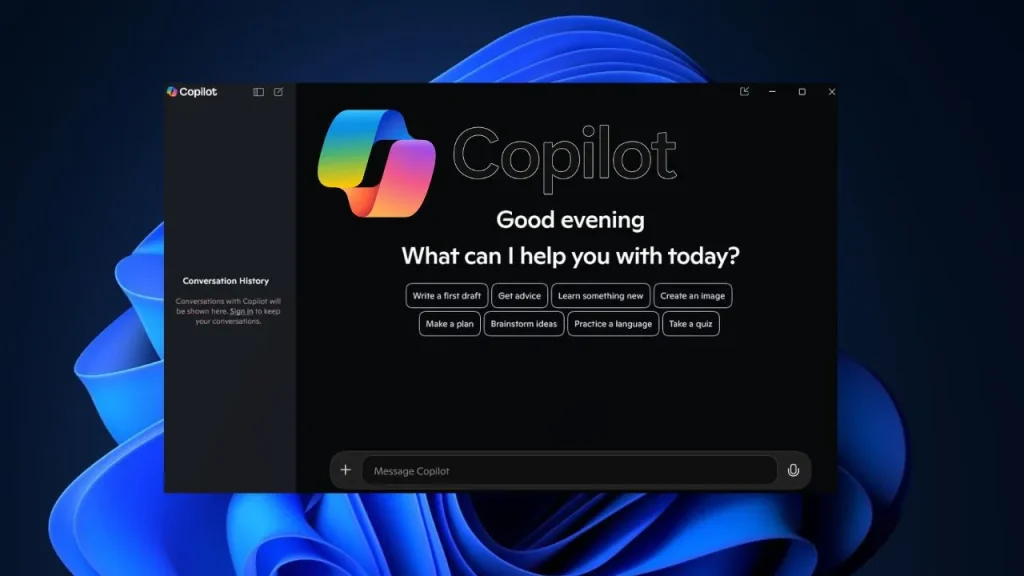
Windows 11 24H2 features bring a smarter, faster, and more secure experience for everyday users and professionals alike. Microsoft releases major updates every year, and 24H2 is the second half update for 2024. It comes with a lot of features that really make the upgrade something worth installing: Not just little fixes but real improvements that will benefit you every day you use it. Here’s a brief glimpse of what’s new
- Copilot is now smarter and more accessible, with deep integration throughout the OS. Newer keyboards even come with a dedicated Copilot key! It’s no longer just a chatbot—it can change settings, open apps, and help you finish tasks faster.
- Energy Saver mode now works whether you’re plugged in or on battery, which means even desktop users can enjoy reduced power usage and cooler performance.
- Passkeys are here—a big step forward in security. You can now replace your traditional passwords with biometric authentication like fingerprint or face unlock.
- Performance has taken a big leap. Boot times are around 15% faster than 23H2, especially on older devices.
- File Explorer feels quicker thanks to improved indexing. Everyday memory usage has dropped by roughly 10%, so everything feels more responsive.
- Gamers will love this one: DirectStorage support has been enhanced for faster game loading, and smarter memory handling keeps frame rates more stable—even during intense moments.
- The taskbar now supports drag-and-drop folder pinning, and touch users get smoother interactions too.
- The Start menu finally feels complete, with support for folders and customizable app recommendations.
- The Photos app is now AI-powered, capable of removing objects, enhancing lighting, and suggesting smart crops automatically.
If you like faster performance, smarter tools, and sleeker design, the Windows 11 24H2 update is definitely worth installing. And in this guide, I’ll walk you through three easy ways to install windows 11 24H2 update—so let’s dive in.
What you’ll Need before You Install Windows 11 24H2 Update
Before you install anything, it’s good to take a moment and check a few things first. Making sure your PC is ready and compatible will save you time and help avoid any installation issues. A little preparation now means a smoother experience later.
Here’s what you need:
- A compatible PC already running Windows 11 with a 1 GHz or faster processor, at least 2 cores on a compatible 64-bit processor or System on a Chip (SoC)
- Minimum 4GB RAM
- At least 64GB of available storage space
- A stable internet connection
- Optional: USB drive (if using the bootable method)
- Backup your important files before updating (just to be safe)
- Create a System Restore Point before updating, in case something goes wrong—you can roll back easily
Not sure if your PC can handle 24H2? No worries!
Microsoft’s PC Health Check app is your go-to tool. Just download it from Microsoft’s official website, run it, and it’ll tell you right away if your system makes the cut.
Download the PC Health Check Tool from Microsoft
How to Install Windows 11 24H2 Update
Method 1: Install Windows 11 24H2 Update via Windows Update (Recommended for Most Users)
This is the easiest and safest way. Microsoft gradually rolls out the update to devices that are eligible. So, if you’re patient, this method works perfectly.
Steps:
- Click on the Start menu and go to Settings
- Select Windows Update on the left panel
- Click Check for updates
- If 24H2 is available for your device, you’ll see something like:“Feature update to Windows 11, version 24H2”
- Click Download and install
- Then just let Windows do its thing. Your computer will download the update, install it, and restart when needed. The whole process might take 30-60 minutes depending on your internet speed and PC specs.
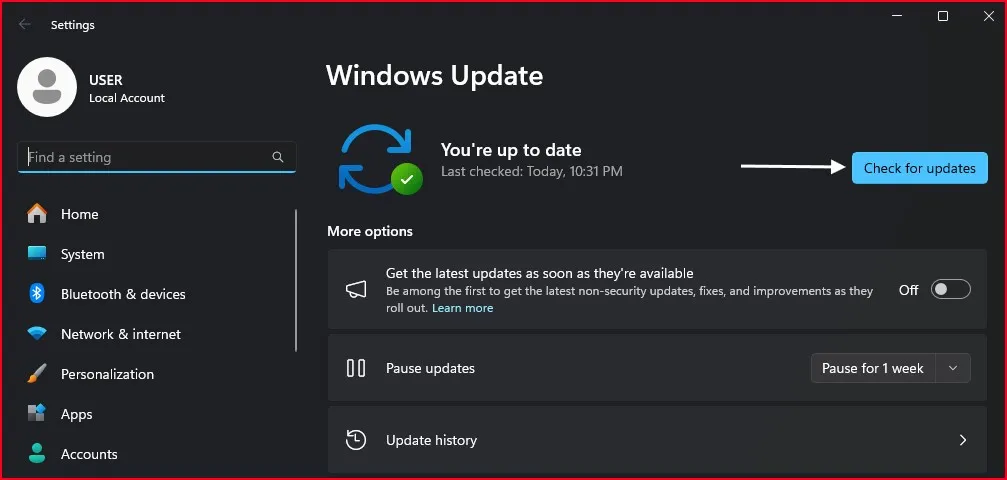
Note: If you don’t see the update, it’s just not released for your device yet. You can either wait or follow Method 2.
Method 2: Use the Windows 11 Installation Assistant
If you’re eager to try out the new update and don’t want to wait, the Installation Assistant is your friend. It helps you install the latest version without deleting your files.
Steps:
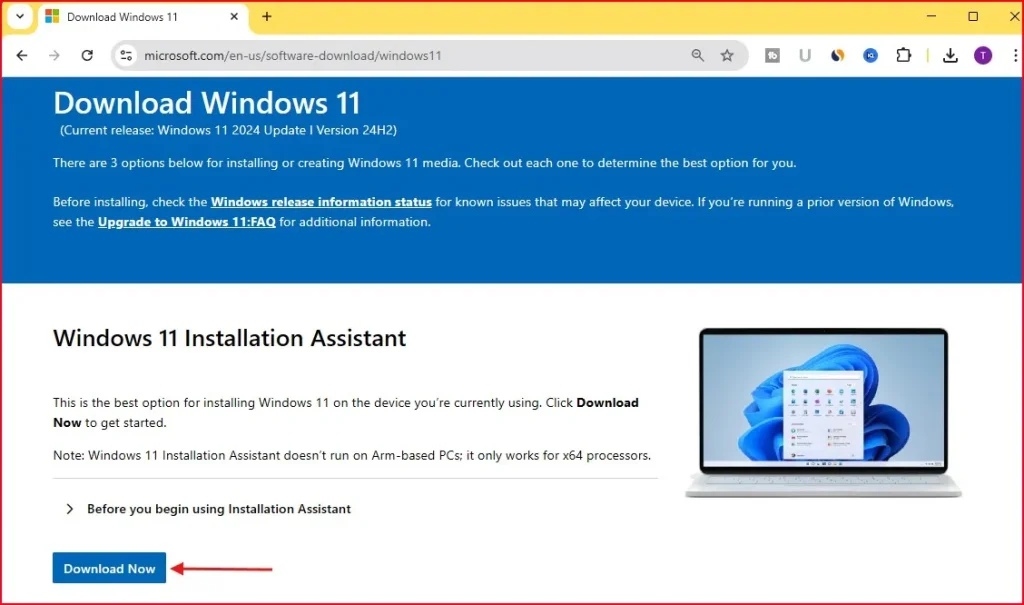
- Visit the official Microsoft page:
https://www.microsoft.com/software-download/windows11 - Under Windows 11 Installation Assistant, click Download Now
- Open the downloaded file and run the tool
- It will check your device for compatibility
- Click Next and it will start downloading the 24H2 update
- Follow on-screen instructions and restart when required
It’ll check compatibility, download the necessary files, and trigger the installation automatically.
Method 3: Install Windows 11 24H2 Update Using a Bootable USB (For Clean Install)
Want a fresh start? Or maybe your system has issues and you want a clean install? This method is for more advanced users. You’ll create a bootable USB and install Windows from scratch.
Steps:
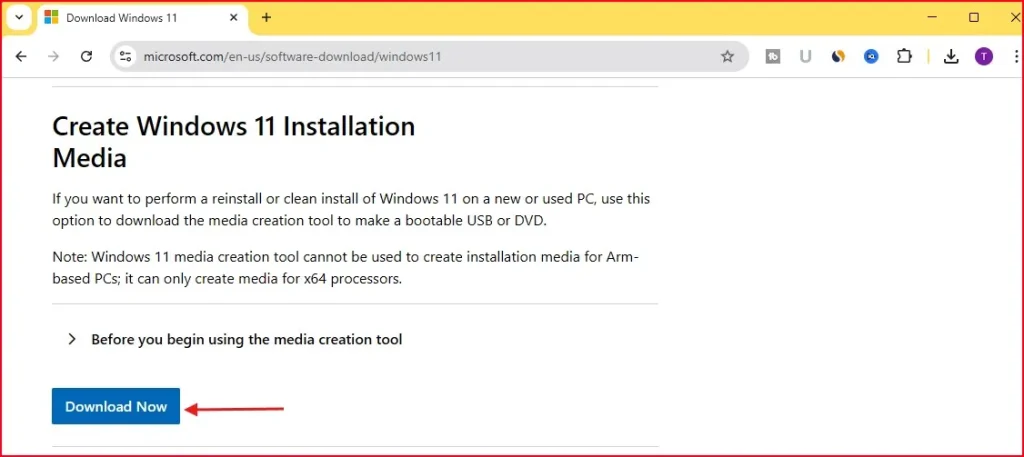
- Go to: https://www.microsoft.com/software-download/windows11
- Scroll to Create Windows 11 Installation Media and click Download Now
- Plug in an 8GB or larger USB drive
- Run the tool and choose USB Flash Drive
- Follow the prompts to create the bootable installer
- Restart your PC and boot from the USB (change boot order in BIOS if needed)
- Choose Custom Installation and format your main drive (C:) for a fresh install
Warning: This method will erase everything on your C: drive. Don’t forget to back up your files!
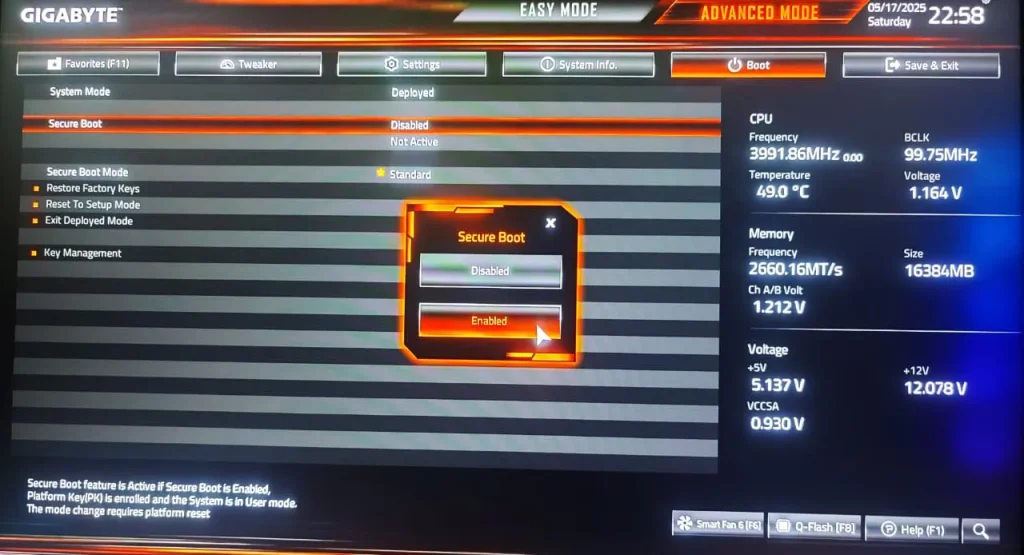
Extra Step (If You Run into Issues): Enable TPM and Secure Boot
Sometimes, your PC might show an error saying it doesn’t meet Windows 11 requirements. In most cases, it’s because TPM or Secure Boot is disabled in BIOS.
Steps:
- Restart your PC and enter BIOS (usually by pressing F2, DEL, or ESC at startup)
- Find the option for TPM or Trusted Platform Module, and enable it
- Look for Secure Boot, and enable that too
- Save changes and exit BIOS
Now try running the installer again and you’ll be able to install windows 11 24H2 update.
Final Thoughts
With Windows 11 24H2, there are a number of improvements which are meant to make your everyday computing even better. From improved AI features and a new level of battery optimization to stronger security and enhanced stability of the system, this update delivers a better experience.
If you’re curious about the most important Windows 11 24H2 features, they include smarter Copilot integration, energy saver support for all devices, passkeys for added security, faster boot times, and better gaming performance with enhanced DirectStorage support.
If you’re going to install Windows 11 24H2 update on your PC, this guide will help you through the simplest and safest ways to do that. Whether you want to use Windows Update, Microsoft’s Installation Assistant tool, or go for a clean install with a bootable USB — we’ve got your back.
Keeping your Windows operating system up to date is more important than ever. With every release, Microsoft is edging towards a more secure, efficient and intelligent platform that meets the demands of the contemporary user. So, go ahead—enjoy what 24H2 has to offer, and may your Windows experience be even smoother and more powerful.
Changed your mind? No worries. Check out these helpful guides:
FAQ – Windows 11 24H2 Update
How long does the update take to Install Windows 11 24H2 Update?
Usually 30 to 60 minutes, depending on your internet speed and system specs.
Can I install Windows 11 24H2 Update on an unsupported PC?
Yes, but you’ll need to bypass hardware checks. It’s not officially recommended.
Will I lose files during the update?
No, your files will stay intact unless you’re doing a clean install.
Is the 24H2 update free?
Yes, it’s a free update for existing Windows 11 users.
Can I roll back after updating?
Yes, within 10 days of installing the update.